When the system is operating normally, the dashboard will display the system status along with the Alerts and Notifications section.
Control Panel:
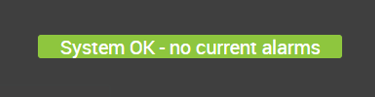
This is used to indicate whether the system has detected any issues.
-
Green bar – The system is operating normally
-
Red/orange bar – An alert requires attention
Viewing Alerts
If the Alert and Notifications bar turns red, you can view more information by tapping this section of the screen.
This will take you to the Alerts Dashboard, where all system alerts are listed.
The Alert Dashboard
On the alert screen, each alert is displayed with a status indicator:
-
Red circle – Active alert
-
Amber circle – Recent alert
-
Grey circle - Inactive
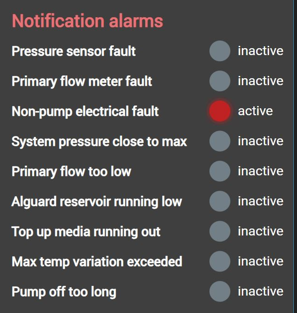
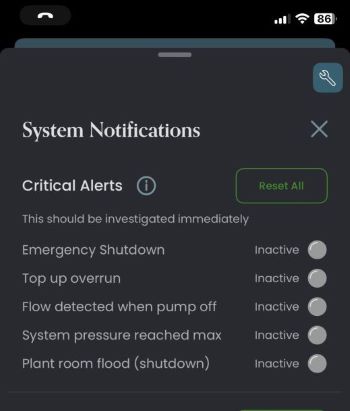
The most important system alerts are labelled as Critical Alerts. If one of these appears, you should contact Origin Aqua for assistance.
Resetting Alerts
Once the cause of an alert has been resolved, most alerts can be cleared by pressing the “Reset All Alerts” button on the alert dashboard, or via the app, provided they are not still active.
Summary
The dashboard provides a quick overview of the system’s status:
-
Green indicators show the system is running normally
-
Red alerts indicate attention may be required
-
Tapping the alerts bar allows you to view and manage alerts
This makes it easy to quickly check that your Origin Aqua system is operating correctly.